Popups
Popups, new in 1.2.1, offer a means for you to declaratively attach some component to act as a popup on a vertex, and as the user pans, zooms or drags the vertex, VisuallyJs will ensure that the popup remains in place relative to the element.
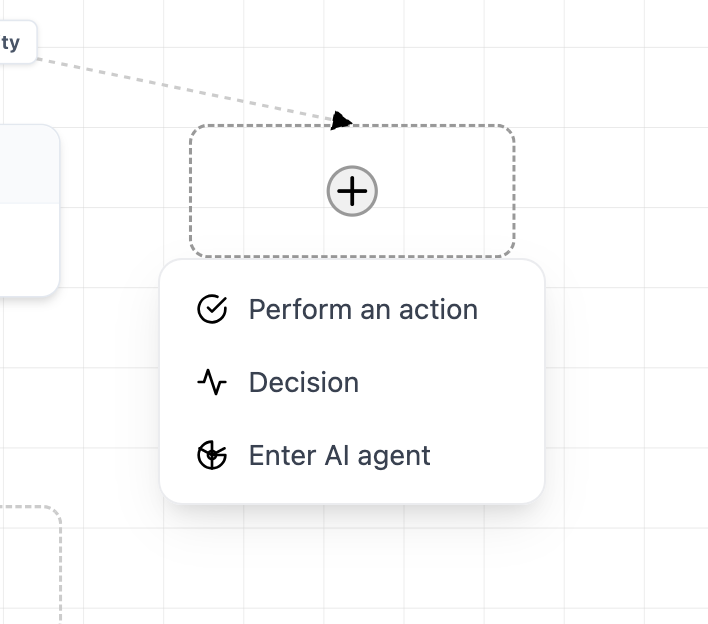
Configuration
Declare Component
To configure a popup in Vue you need to define a component that will take avertex, model and ui as props (and, optionally, a hide function that your component can use to tell the popup to hide). This example (shown above) is from our AI Agent Builder demonstration:
<script setup>

import {BrowserUI, Node, VisuallyJsModel} from "@visuallyjs/browser-ui";

const {vertex, model, ui, hide} = defineProps({
vertex:Node,
ui:BrowserUI,
model:VisuallyJsModel,
hide:Function
})

</script>
<template>
<div v-if="vertex != null">
  {{vertex.id}}
  {{model.getNodes().length}}
</div>
</template>
Your component has access to:
- the vertex the popup is attached to
- the data model
- the UI that rendered this popup
- a function you can invoke to instruct the popup to hide
Configure Popup
Then to declare that you want to use this component as a popup, you need to declare aSurfacePopup in your component's template, and specify the selector that the popup should listen for:
<SurfacePopup selector=".vjs-next-step-picker" v-slot="{vertex, model, ui, hide}">
<PopupComponent :vertex="vertex" :model="model" :ui="ui" :hide="hide"/>
</SurfacePopup>
Add Popup Launcher
Lastly, you can now include a launcher for this popup anywhere inside a component you're using to render a vertex:
<script setup>
import { defineProps } from "vue";

const {data, vertex, ui} = defineProps()
</script>
<template>
  <div>
      <h1>{{data.label}}</h1>
      <button class="vjs-next-step-picker">Launch popup</button>
  </div>
</template>